
There is no fixed number of WordPress plugins that’s too many. As a rule of thumb, many business sites run well with 10 to 20 plugins, and most online stores do fine with 20 to 35. What matters more is looking at each plugin more closely.
The count is only one part of the story. One poor plugin can slow your site or open the door to threats, while ten well-made plugins can run without any trouble. So, quality, need, and staying up to date matter more than the number itself.
Table of Contents
How Many WordPress Plugins Are Too Many: Safe Plugin Ranges
As a rule of thumb, 10 to 20 plugins is a safe range for a business site, and 20 to 35 is a safe range for an online store. Once you go past 30 on a regular business site, you likely have plugins that overlap, do nothing, or no longer get updates.
Here are rough ranges for common site types:
| Site type | Normal range | Look closely at |
| Blog or small brochure site | 5 to 15 | 20 or more |
| Business site | 10 to 20 | 30 or more |
| Online store (WooCommerce) | 20 to 35 | Over 35 |
| Membership or course site | 20 to 35 | Over 35 |
Why Do Stores Need More Plugins?
A blog mostly needs to show posts. A store must also take payments, track orders, calculate shipping, and send emails. Each job often needs its own plugin. So, a higher plugin count is normal for a store. For a WooCommerce store, see our list of WooCommerce extensions worth adding.
Does Plugin Count Actually Matter?
Yes, the count matters, but it matters less than each plugin’s quality. Think of the count as a risk level. More plugins mean more chances for something to go wrong. Quality determines how much damage each plugin can cause.
People argue about this in two ways.
View 1: “Quality Matters, Not The Number”
This group says a few bad plugins can hurt your site more than many good ones. They have a point. A poorly made plugin can slow your pages, clash with other plugins, or open a door for hackers.
They also say a good host can handle many plugins. If every plugin is well made, updated often, and well-reviewed, a site can run fast with dozens.
View 2: “The Number Still Matters”
This group says “quality only” is not the full story. Even a great plugin adds work to your site. It adds code that runs on page loads. It often asks the database for data. It may also load its own CSS and JavaScript files.
One plugin adds a little. Many plugins add up.
What Counts as a Plugin? How to Count Correctly
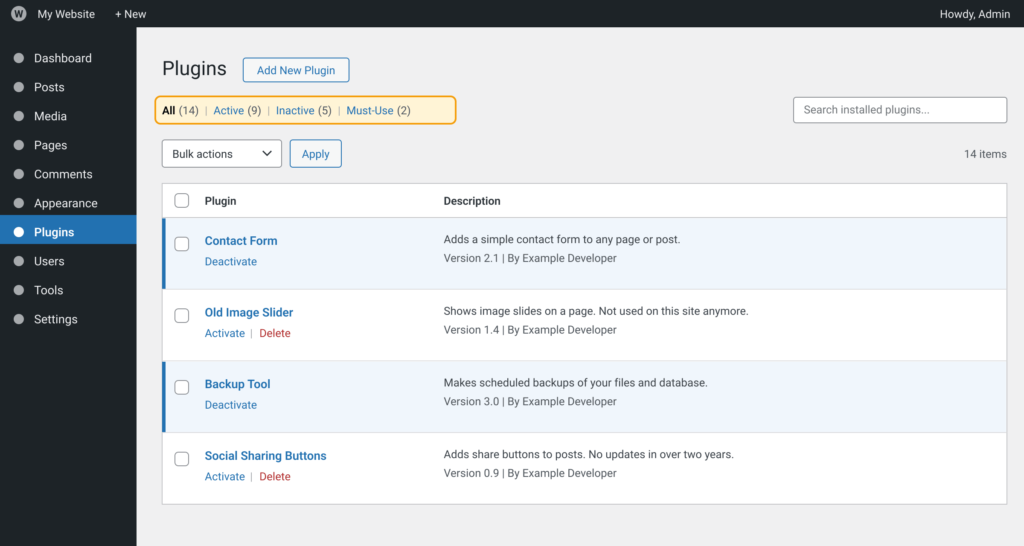
Count every plugin installed on your site, whether it’s enabled or disabled. Each one is code on your server, so each one counts.
How to Count Your Plugins
- Log in to your WordPress dashboard.
- Go to Plugins > Installed Plugins.
- Look at the links near the top of the page. You will see All, Active, and Inactive, each with a number.
- Use the All number as your true count.
- Check for a Must-Use link. If you see one, add that number too.
The Active number shows what runs on your site right now. The Inactive number shows plugins you can likely remove. Look at both.
One Thing to Watch
Some plugins come as a suite, with many tools inside one plugin. That counts as one plugin, but it may do the work of several. When you review your list, check what each big plugin actually does so you don’t keep two plugins for the same job.
The Four Real Costs of Too Many Plugins
Too many plugins can cost you in four ways: speed, security, conflicts, and upkeep. Each plugin adds a little to each of these. The more plugins you have, the more they add.
1. Speed
- Plugins run code each time a page loads.
- Many plugins ask your database for data. More requests mean more waiting.
- Some plugins load their own CSS and JavaScript files, even on pages that don’t need them.
- Plugins that work on the front of your site, like forms, sliders, and booking tools, slow pages more than back-end tools like backups.
- Small delays add up. A slow site drives visitors away and can hurt your Google rankings.
2. Security
- Most WordPress security vulnerabilities are found in plugins, not WordPress itself.
- Every plugin is one more door a hacker can try.
- Old plugins that no longer get updates may never get their security holes fixed.
- Switched-off plugins are still on your server. A hacker can still exploit a known vulnerability.
- A good WordPress security plugin helps you spot and block these threats.
3. Conflicts and Crashes
- Two plugins that do the same job, like two cache plugins or two SEO plugins, can clash.
- A WordPress update can break an older plugin.
- One plugin update can break another plugin.
- You may see a white screen, a 500 error, or a broken page.
- In bad cases, the whole site goes down until you find the cause.
4. Upkeep
- Every plugin needs updates, and each update has a small risk.
- More plugins mean more time spent on updates and checks.
- When something breaks, you have more plugins to test one by one.
| Cost | What it means | Impact on your website |
| Speed | More code, database calls, and files to load | Slower pages, more visitors leaving, weaker rankings |
| Security | More entry points for hackers | Hacked site, malware, stolen data |
| Conflicts and crashes | Plugins that clash with each other or with updates | Broken pages, errors, downtime |
| Upkeep | More updates, checks, and troubleshooting | More time and money spent, higher risk after each update |
Plugin Weight Matters More Than Plugin Count: A Scoring Framework
Plugin weight tells you more than plugin count does. Weight means how much a plugin costs your site in speed, risk, and work. One heavy plugin can hurt more than five light ones. So instead of asking, “How many plugins do I have?” ask, “Is each plugin worth what it costs?”
You can answer that with a simple score.
How the Score Works
Score each plugin from 1 to 3 on four questions. A higher score is worse.
| Question | 1 point | 2 points | 3 points |
| Front-end load: Does it add files or code to your pages? | Works in the admin area only | Loads on some pages | Loads on every page |
| Database use: Does it ask the database for a lot of data? | Very little | Some | A lot |
| Update and security record: Is it well kept? | Updated often, good support | Updated now and then | No recent updates, or past security problems |
| Need: Does your site need it? | Site can’t work without it | Helpful, but not vital | Nice to have, or not used |
What the Total Means
Add the four scores. You will get a number from 4 to 12.
- 4 to 6: Keep it. It is light, safe, and needed.
- 7 to 9: Review it. Look for a lighter plugin, a theme feature, or a small code snippet that does the same job.
- 10 to 12: Remove or replace it. It costs too much for what it gives you.
How to Find Which Plugin Is Slowing Your Site (Step-by-Step)
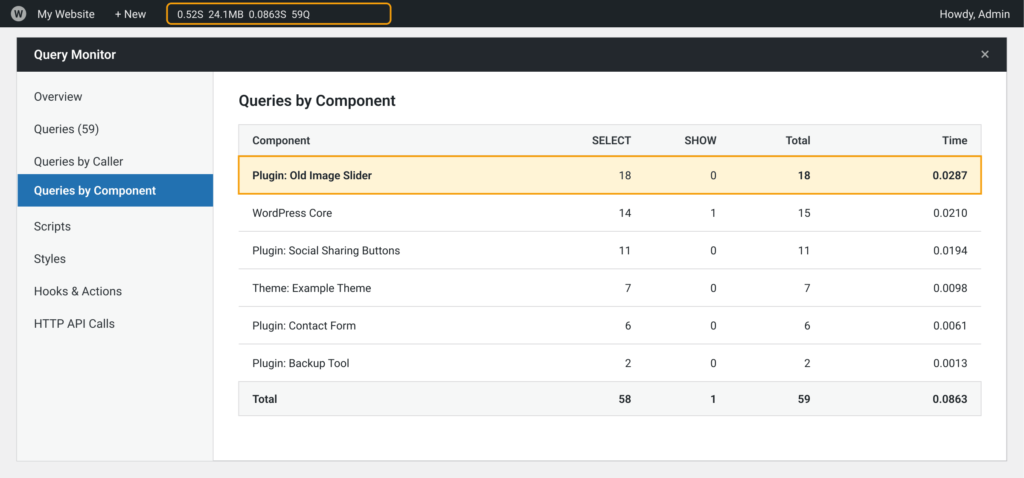
Measure your site’s speed, then switch plugins off one at a time and measure again. The plugin that makes the biggest difference is the heavy one.
Run PageSpeed Insights on a staging copy when you switch plugins off. In Troubleshooting Mode, compare page load time in Query Monitor instead, because PageSpeed Insights still sees all your plugins.
Step 1: Take a Baseline
Run your homepage through a speed test, such as Google PageSpeed Insights. Write down the load time and score. Do this 2 or 3 times, because results can vary slightly each run.
Step 2: Look for Clues with Query Monitor
Install the free Query Monitor plugin. It shows which plugins make the most database queries and load the most scripts and styles. Visit a few pages and check its report. Start with the plugins at the top of the list.
Step 3: Turn Plugins Off One at a Time
Deactivate one plugin, reload your page, and test again. Write down the result. Then turn the plugin back on and move to the next one.
To keep visitors safe from errors, use the free Health Check & Troubleshooting plugin. Its Troubleshooting Mode switches plugins off only for you. Your live site stays the same for everyone else.
Step 4: Compare Your Results
Look at your notes. A plugin that makes a clear difference when it is off is a heavy plugin. Small changes are normal, so focus on the big ones.
Step 5: Decide What to Do
For each slow plugin, you have four choices:
- Keep it if you need it, and it is worth the cost.
- Replace it with a lighter plugin.
- Use a theme feature or a small code snippet instead.
- Remove it.
How to Safely Reduce Your Plugin Count
Back up your site first, then remove plugins one at a time and test after each one. Never delete many plugins at once. If something breaks, you won’t know which plugin caused it.
Step 1: Back Up Your Site
Save a full copy of your files and database in a backup. Do not skip this step. If something goes wrong, you can restore your site in minutes. Our list of the best WordPress backup plugins can help you choose one.
Step 2: Make a List
Go to Plugins > Installed Plugins. Write down every plugin and ask three questions:
- What does it do?
- Do I still use it?
- Does another plugin, my theme, or WordPress already do this?
You can also use the scoring method from earlier to rank them.
Step 3: Spot the Easy Removals
Start with plugins that you don’t need:
- Duplicates: two SEO plugins, two cache plugins, or two security plugins. Keep one.
- Switched-off plugins: if they are off, they are not helping you.
- One-time tools: plugins you used once for a move, an import, or a cleanup.
- Unused widgets: sharing buttons, counters, or sliders you no longer use.
- Old plugins: plugins with no updates in a year or more.
Step 4: Test on a Staging Site
If your host offers a staging site, try the removals there first. Staging is a private copy of your site, so visitors never see any problems.
Step 5: Deactivate, Then Check
Deactivate one plugin. Do not delete it yet. Then click through your key pages:
- Homepage
- Main service or product pages
- Contact form
- Checkout, if you have a store
Step 6: Delete the Plugin
If everything works, delete the plugin. Some plugins have a setting to remove all their data when you delete them. Turn that on first, so no extra files or database tables remain.
Step 7: Repeat, One at a Time
Go back to Step 5 for the next plugin. This is slower, but it is the safest way.
Step 8: Replace Where It Makes Sense
If you want to keep a feature but lose the plugin, you have three options:
- Use a feature in your theme.
- Use a feature built into WordPress.
- Use a small code snippet for simple jobs, such as a redirect.
Step 9: Test Your Speed Again
Run the same speed test you used before. Compare the new results with your first ones. This shows what the cleanup did. If your site is still slow, this WordPress speed optimization guide covers the next steps.
Safe Cleanup Checklist
| Do | Don’t |
| Back up first | Delete many plugins at once |
| Deactivate before deleting | Skip testing your key pages |
| Test on staging when possible | Remove plugins you don’t understand without checking |
| Remove one plugin at a time | Forget to turn on “delete data on uninstall” |
When More Plugins Are Fine: Scenarios and Exceptions
A higher plugin count is fine when your plugins are well-made, up to date, and truly needed. A site with 35 good plugins can run better than a site with 10 bad ones. The number is a warning sign, not a rule.
Here are the times when more plugins are okay.
1. You Run an Online Store or a Membership Site
Stores and membership sites do more than one job. They take payments, track orders, handle shipping, send emails, and manage users. Each job may need its own plugin. A higher count is normal here, as long as each plugin earns its place.
2. You Have Strong Hosting
Good hosting gives your site more power. Managed WordPress hosting often includes caching and other speed tools. A site on a strong host can handle more plugins than a site on a cheap, crowded plan.
3. Many of Your Plugins Work Only in the Admin Area
Plugins that work only behind the scenes, like backup tools or editing tools, add little weight to your pages. They don’t load code for your visitors, so they cost less than front-end plugins like sliders and forms.
4. Your Plugins Are Well Kept
A plugin with regular updates, good reviews, and active support is a safer bet. These plugins fix problems fast. The risk is lower.
5. Each Plugin Has a Clear Job
If you can say what every plugin does and why you need it, you are in good shape. A long list is only a problem when plugins overlap, sit unused, or are not up to date. If you are unsure which ones are worth keeping, see our list of WordPress plugins you must have.
The Limits of These Exceptions
More plugins are still never free. Even with good plugins and strong hosting:
- You still have more updates to run.
- You still have more places to look when something breaks.
- You still have a bigger target for hackers.
So, review your list regularly, even if your site runs well today.
Quick Check
| Your situation | Is a higher count okay? |
| Online store with well-kept plugins | Yes |
| Strong managed hosting | Usually |
| Mostly admin-only plugins | Usually |
| Many unused or old plugins | No |
| Two plugins doing the same job | No |
FAQs
How do I know if I have too many WordPress plugins?
You likely have too many plugins if your site loads slowly, shows frequent errors, or breaks after updates. Other signs are overlapping plugins, unused plugins, and old plugins with no updates. Count your plugins, run PageSpeed Insights, then use Query Monitor to find the heavy plugins.
What are some alternatives to WordPress plugins?
You can use a theme feature, a built-in WordPress feature, or a small code snippet for simple tasks like redirects. A multi-purpose plugin can replace several single-purpose ones. Your host may also offer tools like caching and backups. Use code only if you are comfortable with it.
How do I choose a plugin safely?
Check the plugin’s page on WordPress.org. Look for a recent update, good reviews, many active installs, and a support forum where the developer replies. Read a few low reviews to see common problems. Test it on a staging site before you use it on your live site.
Are deactivated plugins a security risk?
Yes, they sometimes can be. A deactivated plugin still has its files on your server, and a hacker may still be able to exploit a known vulnerability. If you don’t need a plugin, delete it. If you might need it later, you can reinstall it.
Why is my site still slow after removing plugins?
Plugins are only one cause of a slow site. Other common causes are weak hosting, a heavy theme, large images, no caching, a bloated database, and outside scripts like ads or chat tools. Removed plugins may also leave data behind. Test your speed again to find the real cause.
Conclusion
There is no single number for how many plugins are too many for WordPress. For many business sites, 10 to 20 is a safe range. 20 to 35 is common for online stores. But the count is not everything. What matters is how heavy, safe, and necessary each plugin is.
Too many plugins have their own problems. But the good news is you can fix this. Count your plugins the right way, score each one, and find the problem. Then remove the extras one at a time, but keep a backup. Then check your list every few months to keep it lean.

Leave a Reply