
Every WordPress site needs a few plugins for analytics, SEO, security, speed, and design. Here are 10 WordPress plugins you must have, with what each one costs and one caution for each. A plugin is not enough. You need to download the right one. An outdated or weak plugin can put your site at risk.
Want to add social buttons or show related posts? You want your website analytics on your dashboard. You want to add scripts to your headers, footers, and design your website’s login page. Our list of WordPress plugins you must have adds these features in a few clicks.
Disclosure: muPlugins is run by the team behind some of the plugins on this list.
Table of Contents
WordPress Plugins You Must Have: Quick Overview
The 10 must have WordPress plugins in this guide are Analytify, Simple Social Buttons, Rank Math SEO, LoginPress, WP Headers and Footers, Akismet, Related Posts Thumbnails, Elementor, Schema Pro and Imagify. The table shows what each of these essential plugins for WordPress is best for, and whether it has a free or paid version.
| # | Plugin | Best For | Free | Paid |
| 1 | Analytify | Google Analytics reports | Yes | Yes |
| 2 | Simple Social Buttons | Social share buttons | Yes | Yes |
| 3 | Rank Math SEO | SEO | Yes | Yes |
| 4 | LoginPress | Login page customizer | Yes | Yes |
| 5 | WP Headers and Footers | Adding code to header and footer | Yes | No paid version |
| 6 | Akismet | Spam blocking | Yes | Yes |
| 7 | Related Posts Thumbnails | Related posts | Yes | No paid version |
| 8 | Elementor | Page building | Yes | Yes |
| 9 | Schema Pro | Schema markup | No free version | Yes |
| 10 | Imagify | Image compression | Yes | Yes |
The 10 Best WordPress Plugins for Your Website
Each of these 10 essential plugins for WordPress solves one common need, and most offer free and paid options. Start with the first few if you are short on time.
1. Analytify: Best Google Analytics Plugin for WordPress
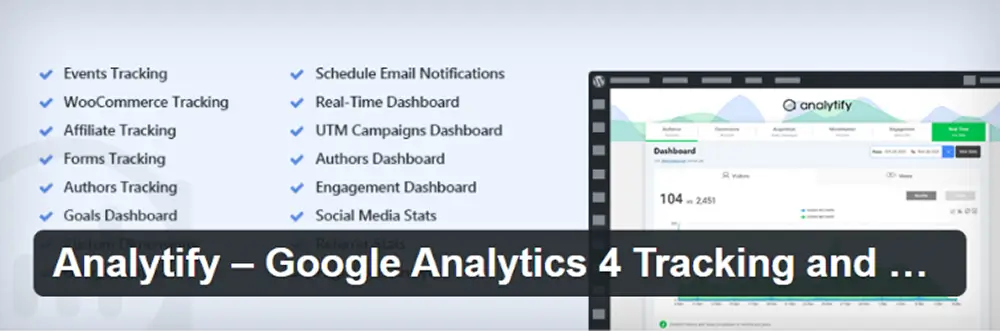
Analytify brings your Google Analytics 4 data into your WordPress dashboard. Now you do not need to log in to Analytics. It has 20,000+ active installations and an average rating of 4.7 stars. It is tested up to WordPress 7.0.9.
Why you need it
It connects your site with GA4 in a few clicks. You don’t need a developer. Once connected, you can see your stats on the main WordPress dashboard. You cannot grow a site if you do not know what works. It turns raw data into a dashboard you actually want to check.
You can see core stats, page-level stats, social media stats, SEO insights, system stats, Search Console insights, and more.
Key features
- Easy-to-understand reports inside the WordPress dashboard.
- Shows your WooCommerce sales data inside WordPress.
- Clean and easy-to-understand analytics.
- Shows your marketing campaign (UTM) reports inside WordPress.
Free vs. Paid
The free version is on WordPress.org. It gives you a limited overview dashboard, while Pro gives you more detailed stats. Pro version also adds WooCommerce, LearnDash, LifterLMS, events, and Google Ads reports, plus email notifications. Pro costs $99 per year for 2 sites (StartUp), $199 per year for unlimited sites (Agency), or $499 one time for a lifetime license (Developer).
| Feature | Free | Pro |
| Google Analytics 4 connection | Yes | Yes |
| Overview dashboard and stats under posts | Limited | Complete |
| Real-time and social media stats | Yes | Yes |
| Advanced reports (comparison stats, geographic stats, CSV export, Search Console) | No | Yes |
| Behavior reports (scroll depth, video, file downloads, outbound and affiliate links, errors) | No | Yes |
| WooCommerce and Easy Digital Downloads reports | No | Yes |
| Marketing tools (forms, campaigns, pixels, email reports, goals) | No | Yes |
One caution
Analytify needs a connected Google Analytics 4 account to show reports. If you do not have one yet, set it up first.
2. Simple Social Buttons: A User-Friendly Plugin for Social Sharing

Simple Social Buttons adds share buttons to your site. It has 20,000+ active installs and a 4.8/5 rating. It offers 19 share options, works in the block editor, and supports AMP pages.
Why you need it
Good content only helps if people see it. Share buttons make it easy for readers to share your posts with their friends and followers. Compare more options in our guide to WordPress social sharing plugins. This can bring more visitors back to your site. You can add an advanced set of social media sharing buttons to your website.
Key features
- Multiple positions for displaying buttons.
- Different styles of buttons
- Works on mobile too.
- Available in 13 different languages: Danish, Dutch, English, French, German, Lithuanian, Polish, Serbo-Croatian, Slovak, Spanish, Swedish, Thai, and Ukrainian
Free vs. paid
Simple Social Buttons has a free version. You can display your buttons inline and in the sidebar. Pro adds three more button positions: pop-ups, fly-ins, and images or media. You can add custom colors to match your site and get premium support. Plans are $49 for one site for one year, $99 for unlimited sites for one year, or $199 for unlimited sites with a one-time payment.
| Feature | Free | Pro |
| Sidebar and inline buttons (above and below content) | Yes | Yes |
| On media (images and videos), pop-up, and fly-in | No | Yes |
| Custom button colors | No | Yes |
| Total share counts | Yes | Yes |
| Gutenberg block | Yes | Yes |
| Premium support | No | Yes |
One caution
Custom colors and extra button positions are Pro only. If you want the buttons to match your brand colors, plan to upgrade.
3. Rank Math SEO: SEO Plugin for WordPress
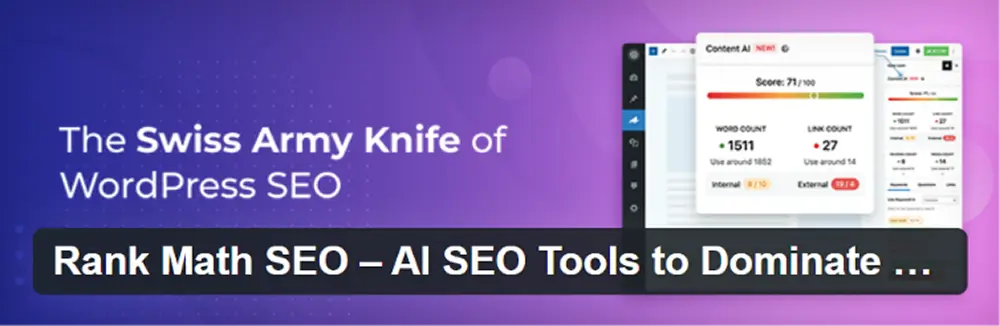
Rank Math helps search engines understand your site. It handles tasks like meta tags, 404 monitoring, and redirects. It also scores your pages on SEO and shows the results in a simple summary.
Why you need it
Good content can still get lost in search. Rank Math guides you as you write, so each post has a better chance to show up on Google. It also handles the technical parts, so you do not need to code.
Key features
- Focus keywords for posts, pages, and custom post types.
- Automatic SEO sitemaps.
- Google Search Console and Google Analytics tie-ins in one dashboard.
- Modules you can turn off, so you only keep what you need.
Free vs. paid
The free version covers the basics. Pro adds a keyword rank tracker and advanced Google Analytics 4 tools. It also includes an advanced schema generator and local SEO for multiple locations.
Pro is billed yearly and costs less than $8 per month for unlimited sites you own. There is a 30-day money-back guarantee. Prices change often, so check the site before you buy.
| Feature | Free | Pro |
| Focus keywords, SEO score, and content analysis | Yes | Yes |
| XML sitemaps, redirections, and 404 monitoring | Yes | Yes |
| Google Search Console integration | Yes | Yes |
| Schema types | Common types (Article, Product, Recipe, FAQ, and more) | Custom schema builder and 840+ types |
| Keyword Rank Tracker | No | Yes |
| Advanced Google Analytics 4 integration | No | Yes |
| Local SEO with multiple locations and WooCommerce SEO | No | Yes |
| AI Content Optimization | No | Yes |
One caution
Some of the best tools, like keyword tracking and Analytics reports, are Pro-only. Its Content AI tool also runs on credits and is a paid feature. Decide what you need before you upgrade.
4. LoginPress: Plugin for a Custom Login Page
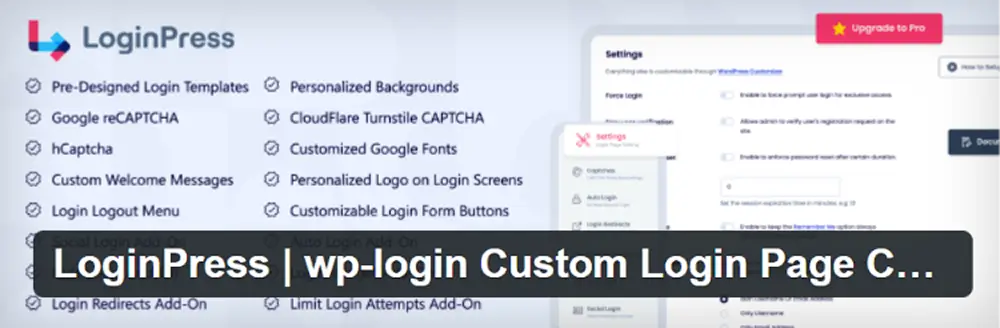
LoginPress restyles your WordPress login page. Customize it with no coding. You can completely change the login page’s look and feel. You can even customize login error messages, forgot password messages, registration messages, and more. It has 200,000+ active installations, a 4.8 rating, and is tested up to WordPress 7.0.9.
Why you need it
The default WordPress login page looks plain and carries the WordPress logo. If clients or members log in to your site, a branded page looks more professional. It also helps people trust that they are in the right place.
Key Features
- You can change the login logo and the mobile logo separately.
- Customize background image or color.
- You can change the background or color of the forget form.
- You can customize the footer.
Free vs. paid
There is a free version on WordPress.org. Premium features include Social Login, Login Redirects, Auto Login, CAPTCHAs, Limit Login Attempts, and Hide Login. Pro costs $99 per year for 2 sites, $199 per year for unlimited sites, or $499 for a lifetime plan.
| Feature | Free | Pro |
| Login templates, backgrounds, Google Fonts, logo, button styles, custom CSS and JS | Yes | Yes |
| Captchas | No | Yes |
| Auto-Login | No | Yes |
| Login Redirects | No | Yes |
| Limit Login attempts | No | Yes |
| Hide Login | No | Yes |
| Social Login | No | Yes |
| Integrations | No | Yes |
One caution
LoginPress mostly changes how the login page looks. It is not a full security plugin. For stronger protection, you need a separate WordPress security plugin.
5. WP Headers and Footers: Plugin for Adding Code to Your Site
The WP Headers and Footers plugin lets you insert code into your WordPress website’s header and footer. You don’t need to edit the theme files to insert the code. It has 200,000+ active installations, a 5.0 rating, and is tested up to WordPress 7.1.5.
Why You Need It
Many tools ask you to paste a code snippet into your site. Editing theme files is risky, and your code stays active even if you change or update your theme. This plugin has a simple interface. It lets you add code and scripts from one place to your website header and footer.
Key Features
- Completely free to use.
- All scripts stay active even if you update or switch themes.
- You can insert as many scripts as needed in the header, footer, or body sections.
| Section | What it does | Best for |
| Header | Adds code to the head of your site | Google Analytics, Meta Pixel, and verification codes |
| Body | Adds code directly in the body tag | Tracking pixels and services that need exact placement. |
| Footer | Adds code at the end of the page | JavaScript snippets and chat widgets. |
Free vs. paid
WP Headers and Footers is free. You can download WP Headers and Footers at no cost.
One caution
This plugin puts your code on the page, but it does not check the code. A wrong or untrusted snippet can slow it down. Paste only code from sources you trust. For alternatives, see our list of WordPress header plugins.
6. Akismet Anti-Spam: Best Plugin to Stop Spam
Akismet checks every comment and form entry against a global spam database and filters the junk before you see it.
Why You Need It
Spam grows fast. Fake comments, bad links, and junk form messages can fill your inbox and make your site look unsafe. Checking each one by hand takes time. Akismet does the first check for you.
Key features
- It first checks comments against known spam, then uses a learning system for the rest.
- It works with top WordPress contact form plugins.
- You can still approve or delete comments by hand.
- It shows stats about the spam it stops.
Free vs. Pro
The Personal plan is free, but only for personal blogs. The Pro plan for business sites starts at $9.95 per month. The business plan starts at $49.95 per month. Also, you need an API key to connect the plugin, even on the free plan.
| Feature | Personal | Pro | Business |
| Price | You Name Your Price | $9.95 | $49.95 |
| Best For | Personal sites | Commercial site | Large network |
| Sites | Multiple non-commercial | One per plan | Unlimited |
One caution
The free plan is only for personal sites or blogs. If your site runs ads, sells products, or promotes a business, you need a paid plan.
7. Related Posts Thumbnails: Plugin to Keep Readers on Your Site

Related Posts Thumbnails show links to other posts at the end of an article. Each link has a thumbnail and a title, and you do not need to code. This Related Posts plugin lets you customize thumbnail sizes. It also displays settings and the relationship type. It has 20000+ active installations and is tested up to WordPress 7.1.5.
Why you need it
Many visitors read one post and leave. Related posts give them a reason to stay. When readers click to a second post, they see more of your content and spend more time on your site.
| Setting | What you can control |
| Thumbnails | Show thumbnails in columns under the post, with the title or excerpt under each one |
| Number of posts | Choose how many related posts to show, from 1 to many |
| Categories | Pick which categories to show or include, and choose the relation type: categories or tags |
| Relation type | Match by category, tag, random, or custom taxonomy |
| Start date | Show only newer posts by setting a date |
| Where to show | Choose page type (main or single), post type, and custom post types |
Key Features
- Easy to set up and customize.
- Accurate and flexible.
- Fully customizable display.
- Fast and lightweight.
Free vs. paid
Related Posts Thumbnails is free. You can download it from the WordPress plugin directory and start using it.
One caution
Related Posts Thumbnails picks related posts by categories or tags. If your categories and tags are messy, the suggestions will be weak. Tidy them up first.
8. Elementor: Page Builder for WordPress
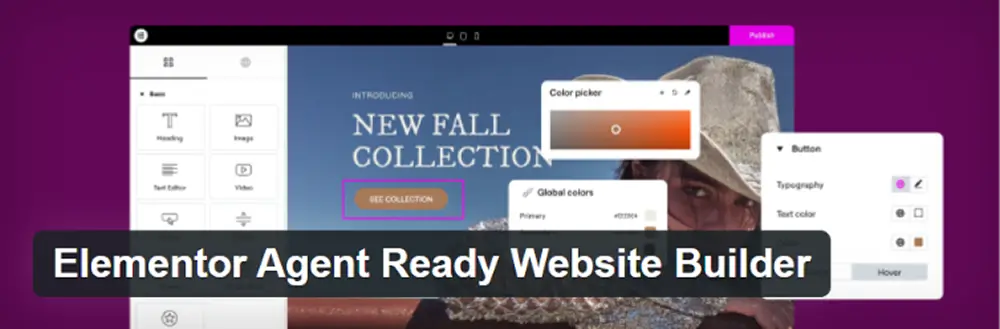
Elementor lets you design pages by dragging and dropping. It is easy for beginners to use. You see your changes as you make them, so you do not need to code. If you want more page builder plugins, check this guide.
Why you need it
Many WordPress themes limit how your pages look. Elementor gives you more control. You can build a home page, a landing page, or a service page the way you want it.
Key Features
- A drag-and-drop editor with 40+ free widgets.
- Page templates to start from.
- Mobile editing, so you can check how pages look on phones.
- Add customizable, floating action buttons that stay in view as users scroll.
Free vs. paid
The free version costs nothing. Pro is sold in yearly plans: Essential, Advanced Solo, Advanced, and One. Pro adds a Theme Builder for headers and footers, a form builder, and more widgets. The Theme Builder is the biggest reason people upgrade.
| Feature | Free | Pro |
| Drag-and-drop editor | Yes | Yes |
| Theme Builder (headers, footers, archives) | No | Yes |
| Form Builder and Popup Builder | No | Yes |
| WooCommerce Builder | No | Yes |
| Custom CSS per element | No | Yes |
| Premium support | No | Yes |
One caution
Headers and footers are only available in Elementor Pro. Also, complex layouts can feel hard for complete beginners at first. Start with a simple page. Once you are comfortable, these Elementor addons add more widgets.
9. Schema Pro: Plugin for Schema Markup
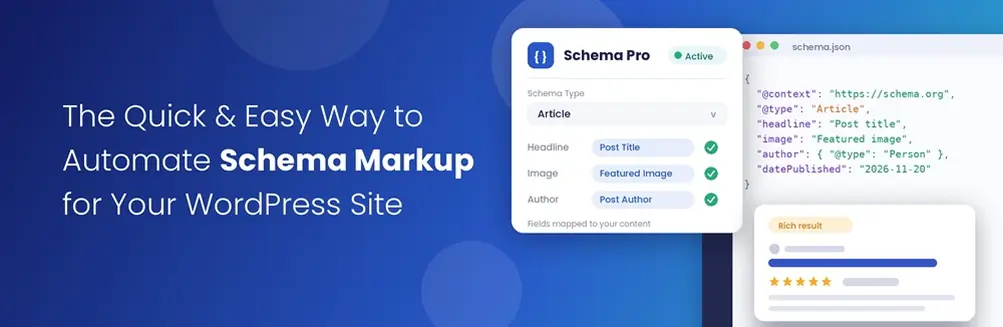
Next on the list of must-have WordPress plugins is Schema Pro. Schema Pro adds schema markup to your pages. Schema is extra code that tells search engines what a page is about, such as an article, a review, or a local business. Schema Pro outputs it in JSON-LD without you writing any code. For more options, see our schema markup plugins for WordPress guide.
Why you need it
Search engines read text, but they can miss the meaning. Schema markup helps them understand your content. Adding it by hand takes coding skill, so a plugin saves time.
Key features
- 20+ schema types.
- Easy mapping of data you already have, like the page title, featured image, and author.
- A custom schema tool for custom post types.
- Newer types for AI search: Profile Page, Dataset, QA Page, and Discussion Forum Page.
- Made by Brainstorm Force, the team behind the Astra theme.
Free vs. paid
Schema Pro is a paid plugin. The annual plan renews at $79 per year, with first-purchase pricing often quoted from $69. It covers unlimited websites and includes premium support and updates. There is also a lifetime plan for $249 with unlimited sites. Prices change, so verify them before you buy.
One caution
The free plugin with a similar name is a different plugin. Make sure you download the right one. Also, the price goes up a little at renewal, so plan for that.
10. Imagify: Best Plugin to Optimize Your Images
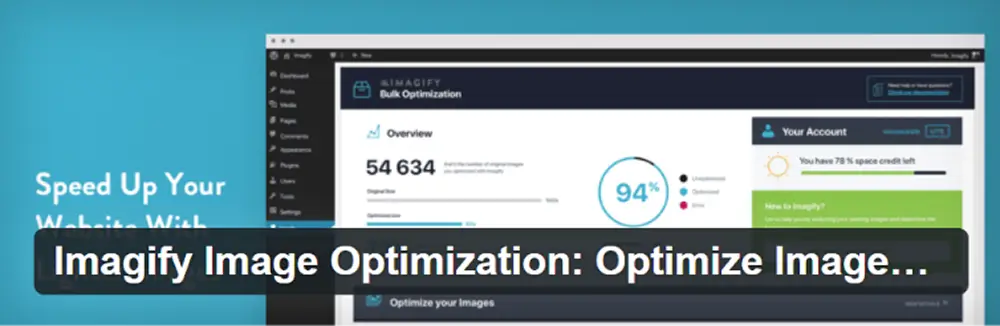
Imagify makes your images smaller so your pages load faster. It can resize and compress images and convert them to WebP and AVIF from your WordPress dashboard.
Why you need it
Large images slow pages, and slow pages can drive visitors away. Imagify shrinks your images so they load faster. You do not need to edit each file yourself.
Key features
- Three compression levels.
- Auto-optimize on upload.
- Bulk optimization that runs in the background, so your site is not slowed down.
- Backup and restore so you can recover your original images.
- Use on as many sites as you like; the only limit is your account quota.
Free vs. paid
There is a free plan. It lets you optimize up to 20MB of images each month. That is about 200 images. WebP and AVIF conversion is included in all plans, including the free one. The paid plans are Growth, which has a larger monthly quota, and Infinite, which has no quota limit. Growth costs $4.99 per month and Infinite costs $9.99 per month, both billed yearly.
| Features | Free (Starter) | Growth | Infinite |
| Price per month (billed yearly) | $0 | $4.99 | $9.99 |
| Monthly quota | 20MB (about 200 images) | 500MB (about 5,000 images) | Unlimited images |
| Max upload size per image | 2MB | Unlimited | Unlimited |
| Websites | Unlimited | Unlimited | Unlimited |
| If you go over your quota | You must wait until it renews | You pay for extra GB | No quota limit |
| Compression levels, WebP and AVIF, auto-optimize, backup and restore | Yes | Yes | Yes |
One caution
The free quota is small. Some users say the free plan limits are a downside. If you publish many images or have a large media library, you may need a paid plan. For alternatives, compare these WordPress image compression plugins.
How We Chose These Must Have WordPress Plugins
We picked these must have WordPress plugins using a few simple rules.
- Each one does a clear job. Each plugin solves a common need, such as SEO, images, spam, or tracking.
- You can tell what it costs. We checked what is free and what is paid, so you know before you install it. Some plugins are only available as paid plans.
- It is made for non-coders. Each plugin can be set up from your WordPress dashboard. You do not need to write code.
- It has a track record. To find them, we looked at ratings and active installs on WordPress.org. Some plugins are sold on their own sites, so we couldn’t review every one.
- We list the downsides. Each plugin has one caution, so you can see where it falls short.
- We read the sources. We used each plugin’s own website and its WordPress.org page.
How to Install and Manage Plugins Safely
Install even the best WordPress plugins safely by backing up first, checking each plugin’s WordPress.org page, and testing on a staging site when you can. Every plugin adds code to your site, and these steps lower the risk. No step can make a site fully safe, but together they help.
Before You Install
- Make a backup. Use your host’s backup tool or a WordPress backup plugin. If something breaks, you can go back.
- Check the plugin page. On WordPress.org, look at the last updated date, the number of active installs, and the “Tested up to” version. You’ll find these details on each plugin page. A plugin that hasn’t been updated in a long time may not work with your version of WordPress.
- Read the reviews and support threads. Look for common problems and see whether the makers respond.
- Look for security reports. Search the plugin’s name with the word “vulnerability.” One past issue doesn’t make a plugin bad, but make sure it was fixed.
- Test it first if you can. If your host offers a staging site, try the plugin there before using it on your live site.
How to Install a Plugin
- In your WordPress dashboard, go to Plugins > Add New.
- Search for the plugin by name.
- Click Install Now, then Activate.
- If the plugin is sold on its own website, download the ZIP file from the maker’s site and use Upload Plugin on the same page.
1. Stay Away From “Nulled” Plugins
Nulled plugins are paid plugins that someone has copied and given away for free. Do not use them. The code may have been changed, and you cannot know what was added. Buy from the maker or use a free version.
2. Keep Plugins Up to Date
Check for updates often. Updates can fix bugs and security problems. WordPress lets you turn on auto-updates for each plugin. Auto-updates are handy, but an update can sometimes cause problems, so keep backups. After a big update, open your site and test key pages and forms.
3. Remove Plugins You Don’t Use
A deactivated plugin is still stored on your server. Old plugins that no longer get updates can become a risk. If you no longer need a plugin, deactivate it and then delete it.
4. Keep It Simple
Install only the WordPress plugins you must have, plus any with a clear job. Two plugins that do the same job can cause problems, so pick one. Add plugins one at a time, so you can tell which one caused an issue.
Frequently Asked Questions
What are the WordPress plugins you must have?
Most sites need one plugin for each core job: analytics (Analytify), SEO (Rank Math), spam protection (Akismet), image compression (Imagify) and adding code (WP Headers and Footers). Add login branding (LoginPress), share buttons (Simple Social Buttons), related posts (Related Posts Thumbnails), page building (Elementor) and schema (Schema Pro) when your site needs them.
What is a WordPress plugin?
A WordPress plugin is a piece of software that adds a feature to your site. It can add a contact form, speed up your pages, or help with SEO. You install it from your dashboard, then turn it on with the Activate button.
How do WordPress plugins work?
Plugins work by connecting to WordPress at set points, called hooks. A plugin can use a hook to run its own code at the right moment, for example when a page loads or when a comment is posted. This means the plugin adds features without changing the core WordPress files.
Will too many WordPress plugins slow down my website?
Not always. The number of plugins matters less than the quality of each one. A single heavy or badly coded plugin can slow your site more than several light ones. Choosing the best WordPress plugins for each job, and only one per job, keeps your site fast.
How many WordPress plugins should I use?
There is no set number. Start with the WordPress plugins you must have for core jobs, and add others only when your site needs them. A simple blog may need only a few. An online store may need more.
Before you add a plugin, ask whether you really need it. And whether another plugin or a built-in WordPress feature already does the job.
Are premium WordPress plugins worth it?
It depends on your needs. Many WordPress plugins you must have, such as Rank Math and WP Headers and Footers, work well on their free versions. Premium plugins usually add features and support, and they often come with regular updates. This can help if your site is part of your business, or if you need help when something goes wrong. But many free plugins work well for basic needs, and a higher price does not guarantee better quality.
Do professional developers use WordPress plugins over custom code?
Many use both. Developers often choose a trusted plugin when it already does the job well. It saves time, and the maker keeps it updated. They write custom code when a plugin does not fit. They do this when they need exact control or want to avoid adding extra features they do not use. Even developers keep essential plugins for WordPress, such as an SEO plugin and an anti-spam plugin, because the makers maintain them.
Why is a plugin not working after I install it?
Most plugins stop working because of a conflict with your theme or another plugin, a cache that is showing an old version of the page, or a WordPress or PHP version the plugin does not support. Clear your site and browser cache first. Then deactivate your other plugins one at a time to find the clash. Also check the plugin’s “Tested up to” version on WordPress.org. If it still fails, ask in the plugin’s support forum.
Conclusion
You don’t need all 10 of these plugins. In this guide, we covered the 10 WordPress plugins you must have on most sites, so start with the ones that solve a problem you have today. Add another plugin only when you have a clear reason. If you are not sure where to begin, try these three essential plugins for WordPress first:
- WP Headers and Footers lets you add code to headers and footers without editing your theme.
- LoginPress lets you style your login page with your own logo and colors.
- Simple Social Buttons adds share buttons to your posts.
All three can be set up from your dashboard, and each has a free version to try. Check out the plugin page for what the free version includes before you decide to upgrade.
Pick the must-have WordPress plugin that fits your site’s needs today and add the others later if you need them.
